Car maintenance app for iPhone and Android
Free. Installs from this website in under a minute - no App Store or Google Play.
ServiceSage Auto is a car maintenance tracker that installs straight from the website onto your iPhone, Android phone or computer. It loads your car's factory maintenance schedule, reminds you before each service is due, and keeps your service history. Free for up to 3 vehicles.
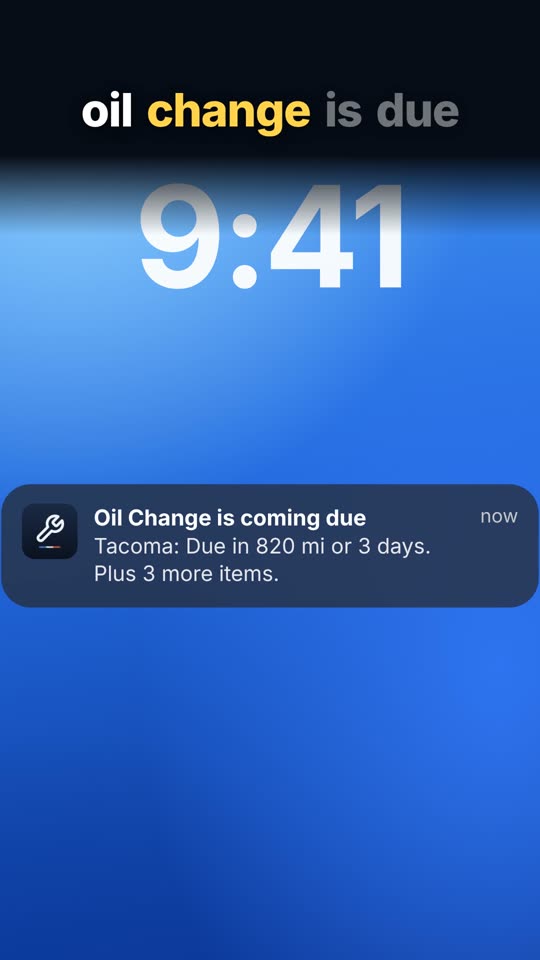
Watch how - 32 seconds: iPhone in Safari, then Android in Chrome, start to finish.
What the app does
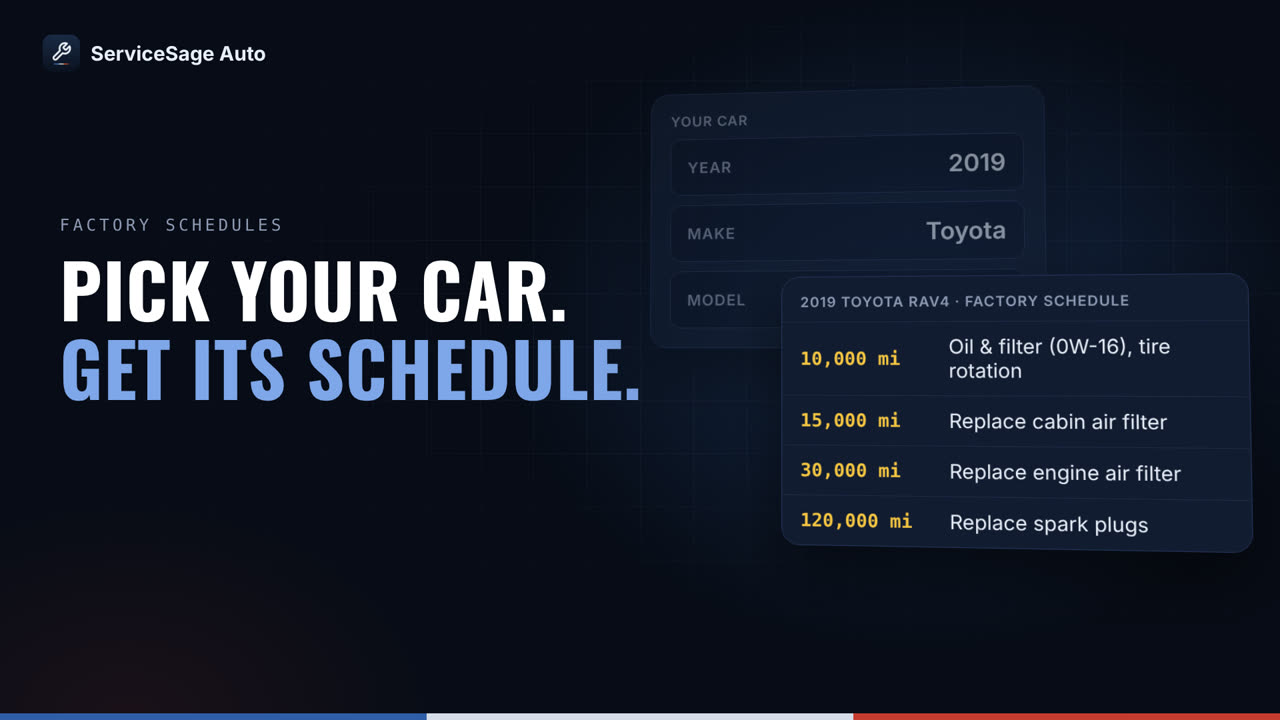
See how it works - 31 seconds: Pick a car, get its factory schedule, get an email before a job is due, and log it when it is done.
- Your factory schedule, loaded. Add the year, make and model and the maintenance schedule appears - oil, filters, fluids, spark plugs, with the intervals for your car.
- Reminders before a service is due. By email, and as notifications on your phone once the app is installed. Reminders follow your mileage and the calendar.
- A service log that stays. Log an oil change, a repair, a fill-up or the odometer in a few taps. Your history is kept on every plan, with no limit on entries.
- Same account everywhere. Phone, tablet and computer show the same garage. Nothing to move over if you already use the website.
Install on iPhone or iPad (Safari)
- Tap the Share button. It's in Safari's toolbar. On iOS 26, tap the ... button first, then Share.
- Choose Add to Home Screen. Scroll the list down to find it. If you only see a short list, tap View More.
- Tap Add. Leave "Open as Web App" switched on. ServiceSage appears on your Home Screen.
- Open it and turn on reminders. Open it from the new icon, sign in, then go to Settings > Reminders and turn on Phone notifications. iPhone only sends reminders to apps opened from the Home Screen.
Using Chrome or another browser? The same steps work from its Share menu on iOS 16.4 or later. In Safari they are guaranteed to.
Install on Android (Chrome)
- Open the browser menu. In Chrome it is the three dots at the top right.
- Tap Install app. Some browsers call it Add to Home screen. Pick Install if you are asked.
- Open it and turn on reminders. Open it, sign in, then go to Settings > Reminders and turn on Phone notifications.
Install on a computer
- Chrome or Edge. Click the install icon at the right end of the address bar, or open the browser menu and choose Install (Chrome lists it under Cast, save and share; Edge under Apps).
- Safari on a Mac. macOS Sonoma or later: File, then Add to Dock.
- Or just use the website. Everything works in any browser tab too - installing only gives it its own window and icon.
Good to know
Notifications
Reminders always come by email. The installed app can also show them as notifications: on Android, and on iPhone and iPad with iOS 16.4 or later when you open it from the Home Screen icon. Switch them on in the app under Settings > Reminders > Phone notifications.
No signal
The app opens and shows the last garage and due list it loaded, marked as a saved copy. Logging a service needs a connection.
Signing in on iPhone
The Home Screen app keeps its own sign-in, separate from Safari, so you sign in once inside it with your email and password. Signed up from a reminder email and never set a password? Set one first with "Forgot password?" on the log-in page.
Updates
It is the website, so it is always the latest version. There is nothing to update and no app store account needed.
Not in the App Store or Google Play yet: it installs straight from the website, so it is always the latest version.
Create a free account | Log in | What the car maintenance tracker does
Frequently asked questions
Is ServiceSage Auto in the App Store or Google Play?
Not yet. It is a web app you install from the website: on iPhone through Safari's Share menu (Add to Home Screen), on Android through Chrome's Install app, and on a computer through Chrome or Edge. Once installed it has its own icon and opens full screen like any other app.
Is there a free car maintenance tracker app for iPhone?
Yes. ServiceSage Auto is free for up to 3 vehicles, with your factory maintenance schedule, reminder emails and an unlimited service history. On iPhone, open servicesageauto.com/install in Safari, tap Share, then Add to Home Screen. Reminder notifications need iOS 16.4 or later and the app opened from the Home Screen icon; turn them on under Settings > Reminders.
How do I install the car maintenance app on Android?
Open servicesageauto.com/install in Chrome and tap Install, or open the browser menu (three dots) and choose Install app. Some browsers call it Add to Home screen. Then open it from the icon, sign in, and turn on Phone notifications under Settings > Reminders.
Does the app send maintenance reminders as notifications?
Yes, once it is installed and you turn on Phone notifications under Settings > Reminders: on Android, and on iPhone or iPad with iOS 16.4 or later. Email reminders keep coming either way, so nothing depends on the phone.
Does it work without a signal?
It opens and shows the last garage and due list it loaded, marked as a saved copy. Saving a new service or fill-up needs a connection.
Do I need to sign in again in the app?
On iPhone, yes, once: the Home Screen app keeps its own sign-in, separate from Safari. Use your email and password. If you never set a password (for example you signed up from a reminder email), set one first with "Forgot password?" on the log-in page. On Android the installed app usually shares Chrome's sign-in.
Is it safe to install a web app?
It is the website saved to your home screen. It gets no more access to your phone than the website does in a browser, it shows notifications only after you turn them on and your phone asks you to allow them, and you remove it like any other app.